Access, labs, permissions
Login, lab context, and what stock you can see or change.
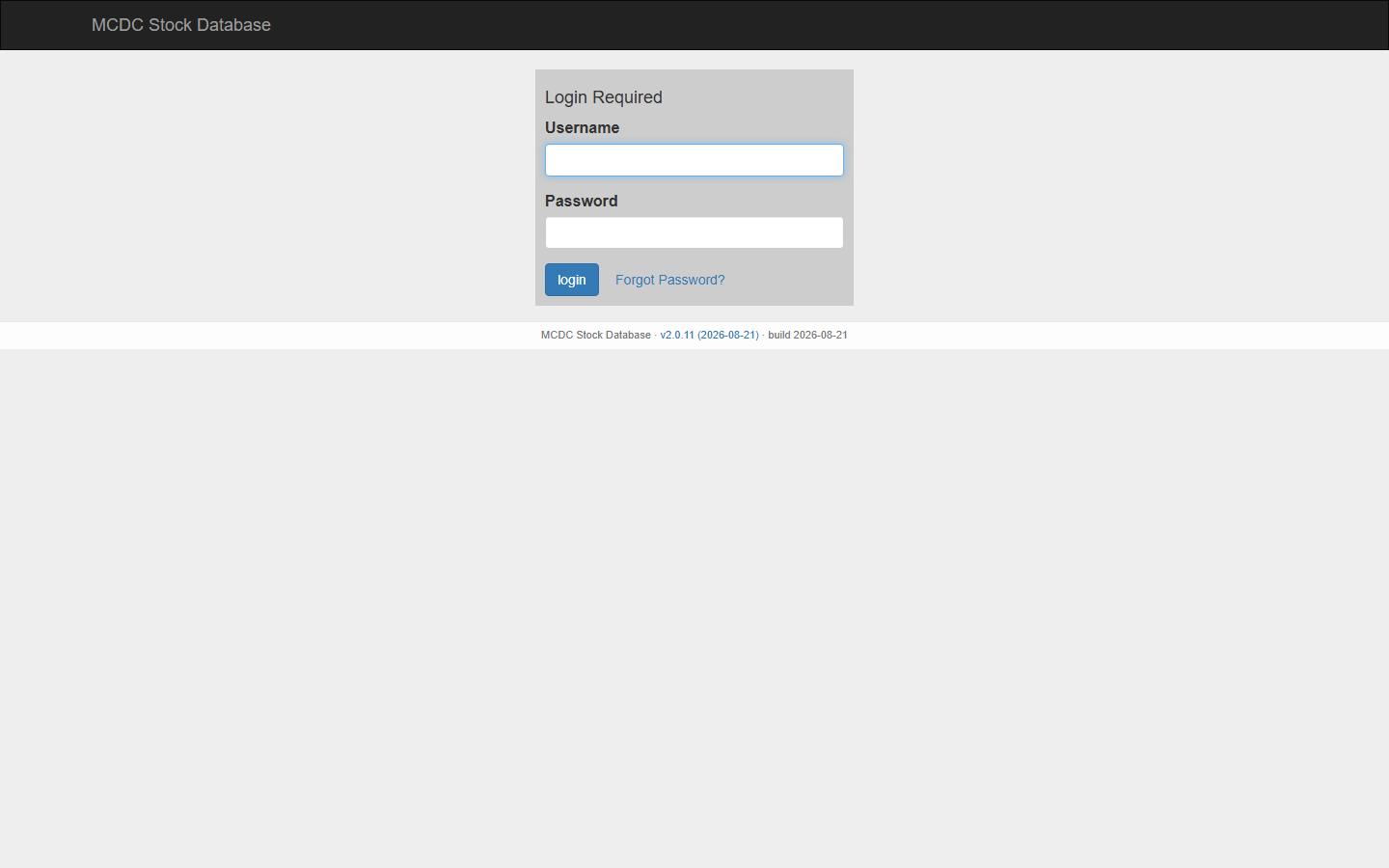
Login and password
- Open the app and sign in with username and password.
- If an administrator reset your password, you must set a new one before any other page (reopening login, using the menu, or opening admin does not skip this).
- Locked after repeated failures → ask an admin.
- Account Settings → Change Password on shared PCs; log out when finished.
- Forgotten password: Forgot Password? on the login page (needs email configured). Welcome and reset mail is sent from the configured Gmail account.
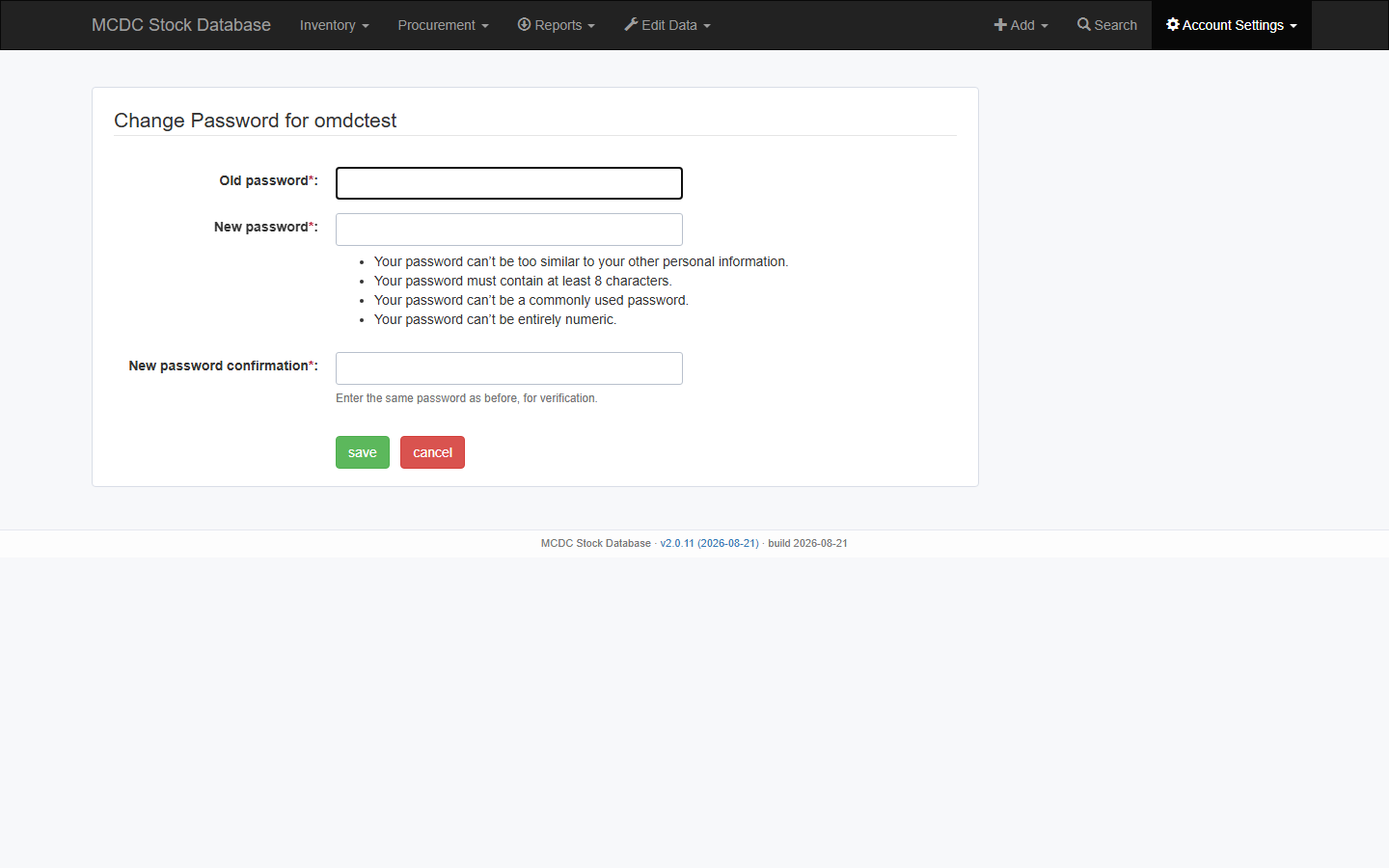
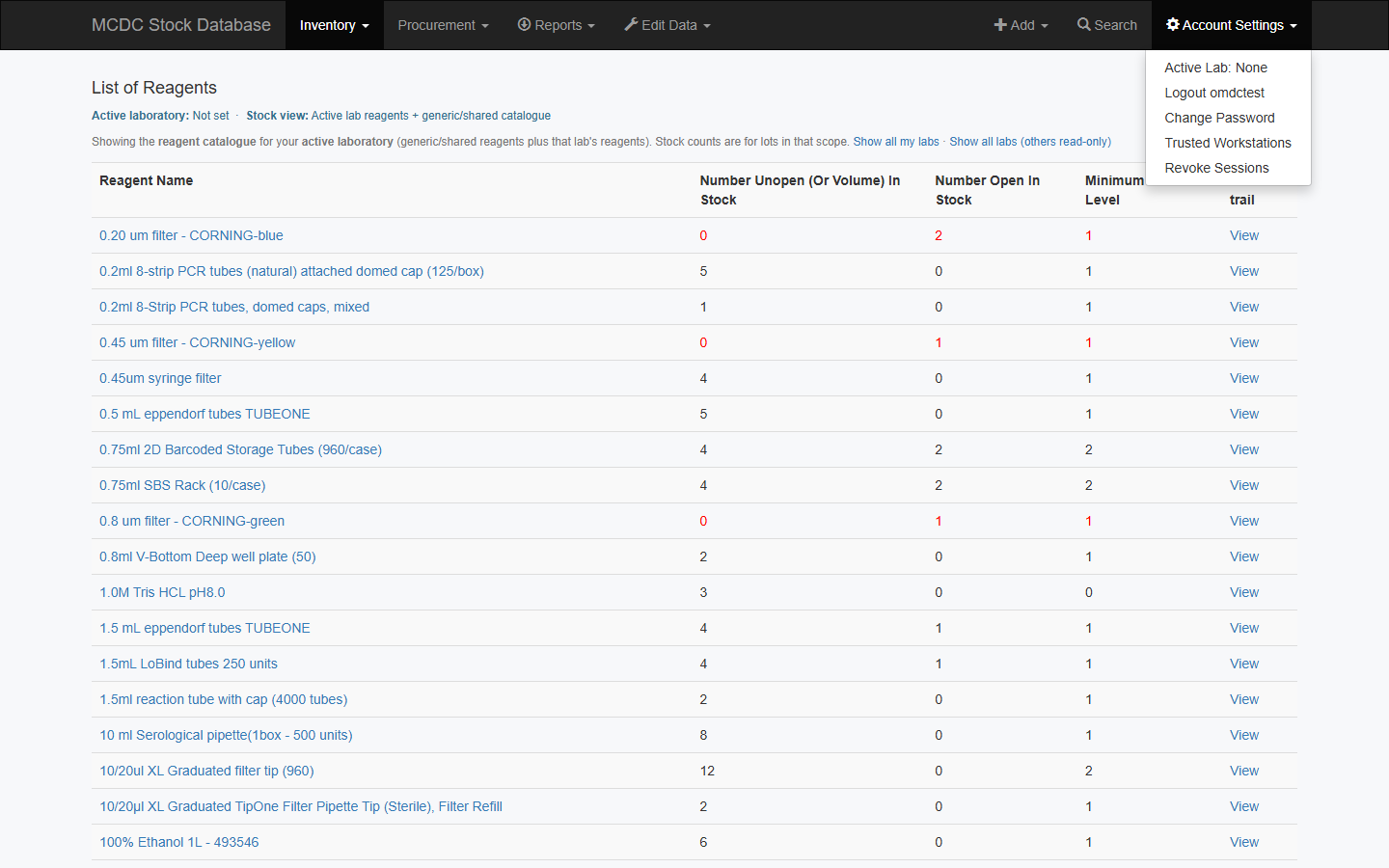
Account Settings
The cog menu shows the logged-in user, password and workstation tools, and (admins) session revoke. When you have laboratory memberships, Switch Lab and Stock view also appear here.
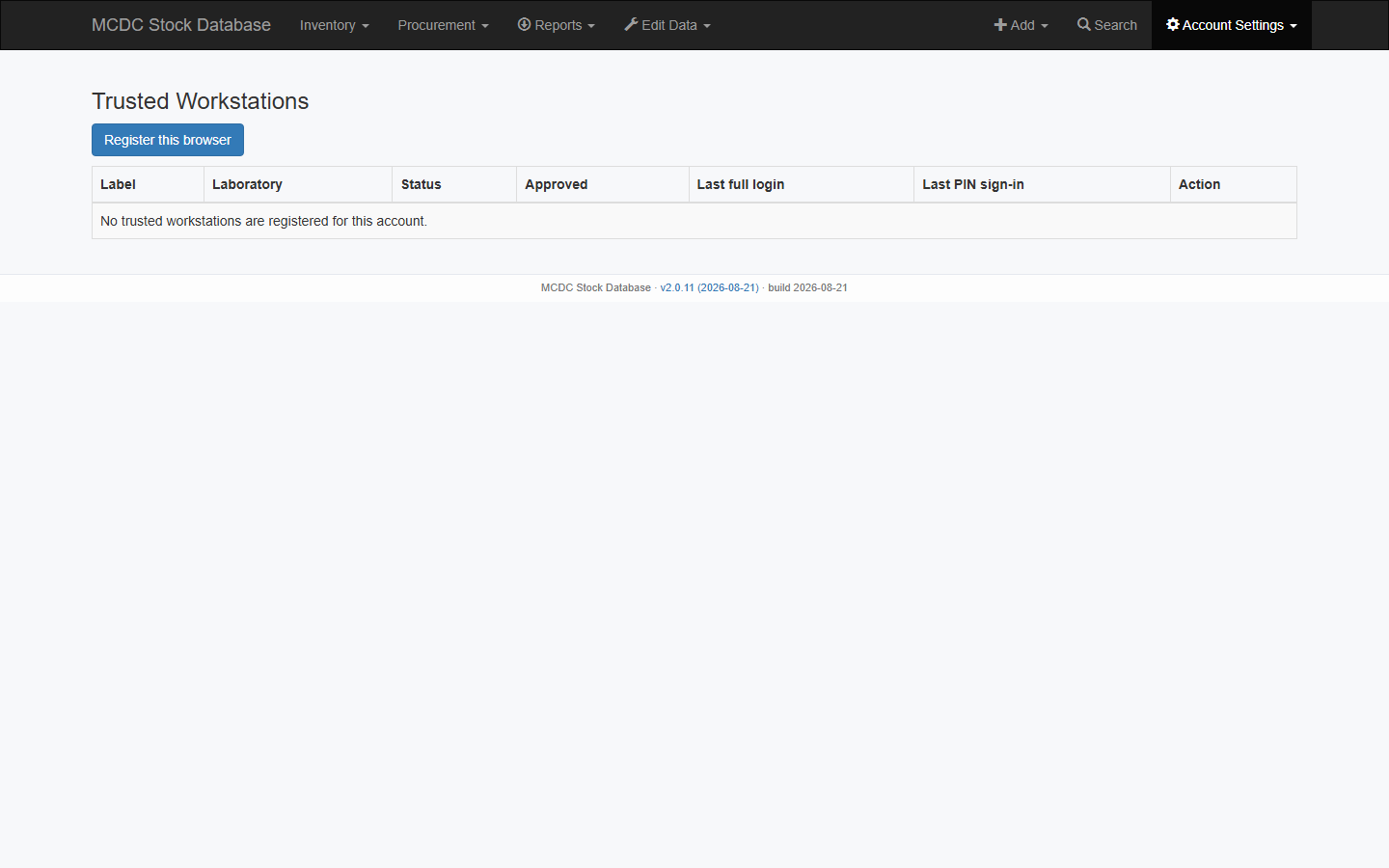
Trusted workstations
- Account Settings → Trusted Workstations → Register this browser and set a PIN.
- Later visits: enter the PIN instead of the full password.
- Revoke a row on the same screen if the device is shared or compromised.
Lab context
Login
  └── Active laboratory
        └── Stock view
              ├── active lab only      → own lab + global/unassigned
              ├── all my labs          → all memberships + global/unassigned
              └── all labs (read-only) → all active labs; mutate only active-lab lots
- Account Settings → Switch Lab → … (resets stock view to active lab only).
- Set Stock view (only if you have at least one lab membership):
- active lab only — day-to-day booking and finishing
- all my labs — coordinate across your labs
- all labs (read-only other labs) — inspect other labs; switch lab or Request transfer to change their stock
- Inventory → List of Reagents also filters reagents: shared/generic always shown; home-lab reagents only when that lab is in scope. The header switch chooses this laboratory, all your laboratories, or all laboratories.
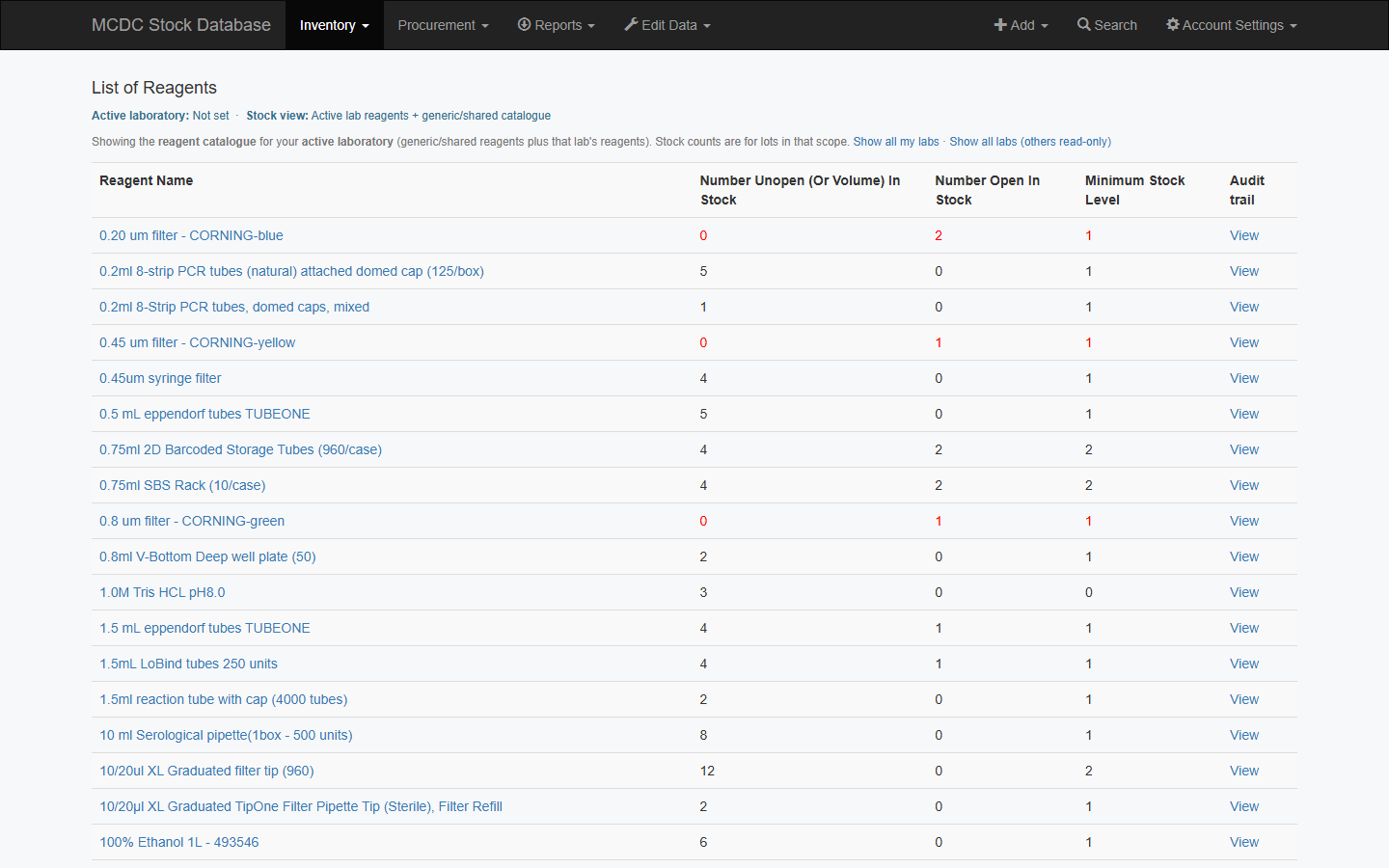
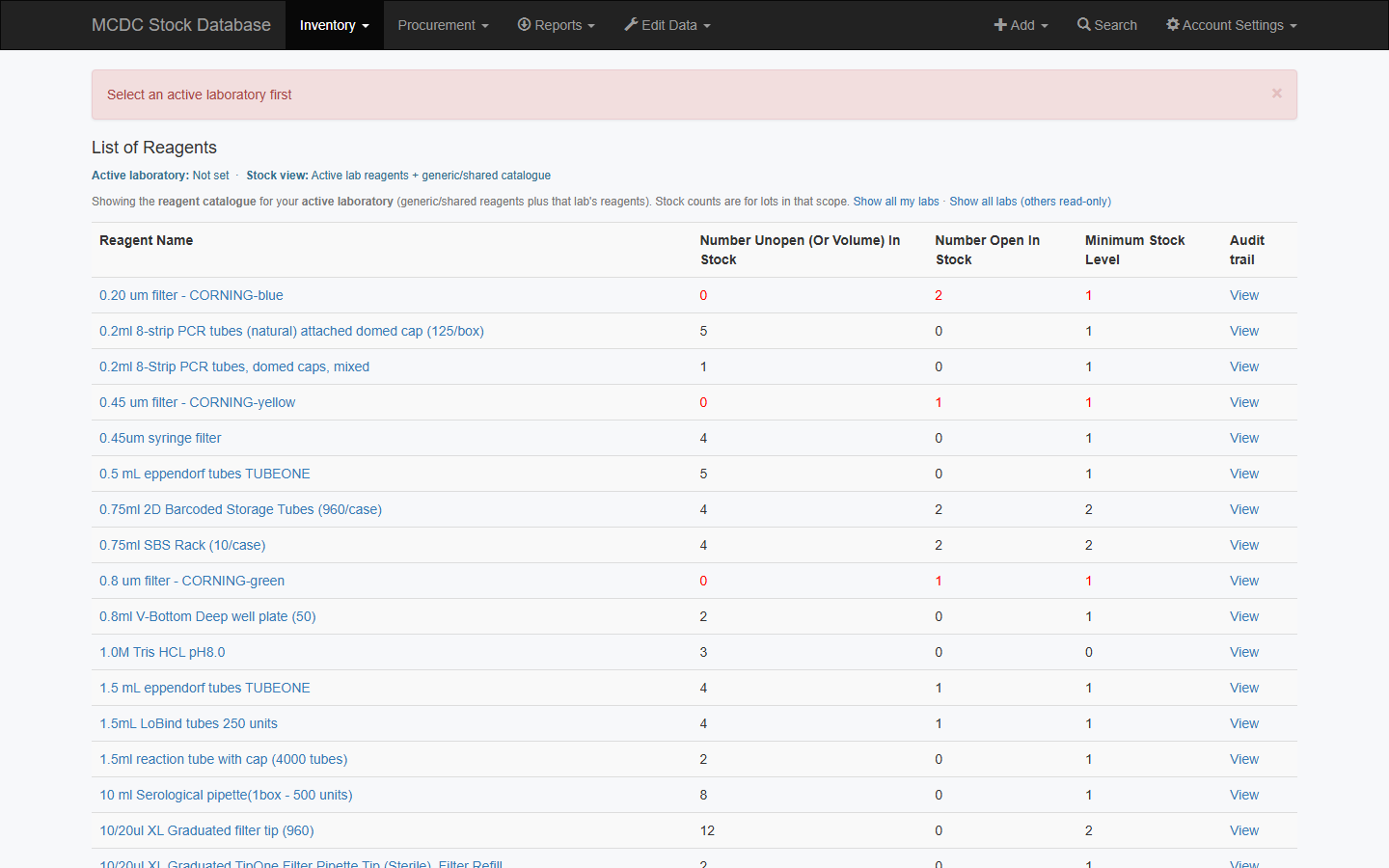
If Active laboratory is Not set, mutating a lot is blocked. The app tells you to select an active laboratory first, or to switch to the lot’s lab / request a transfer.
Visibility and transfers
| Availability | Meaning |
|---|---|
| Lab-only | Owning lab only |
| Shared | Cross-lab use after transfer approval |
| Global | Usable across labs without transfer |
- On the item page, Request transfer (destination lab + notes) if offered.
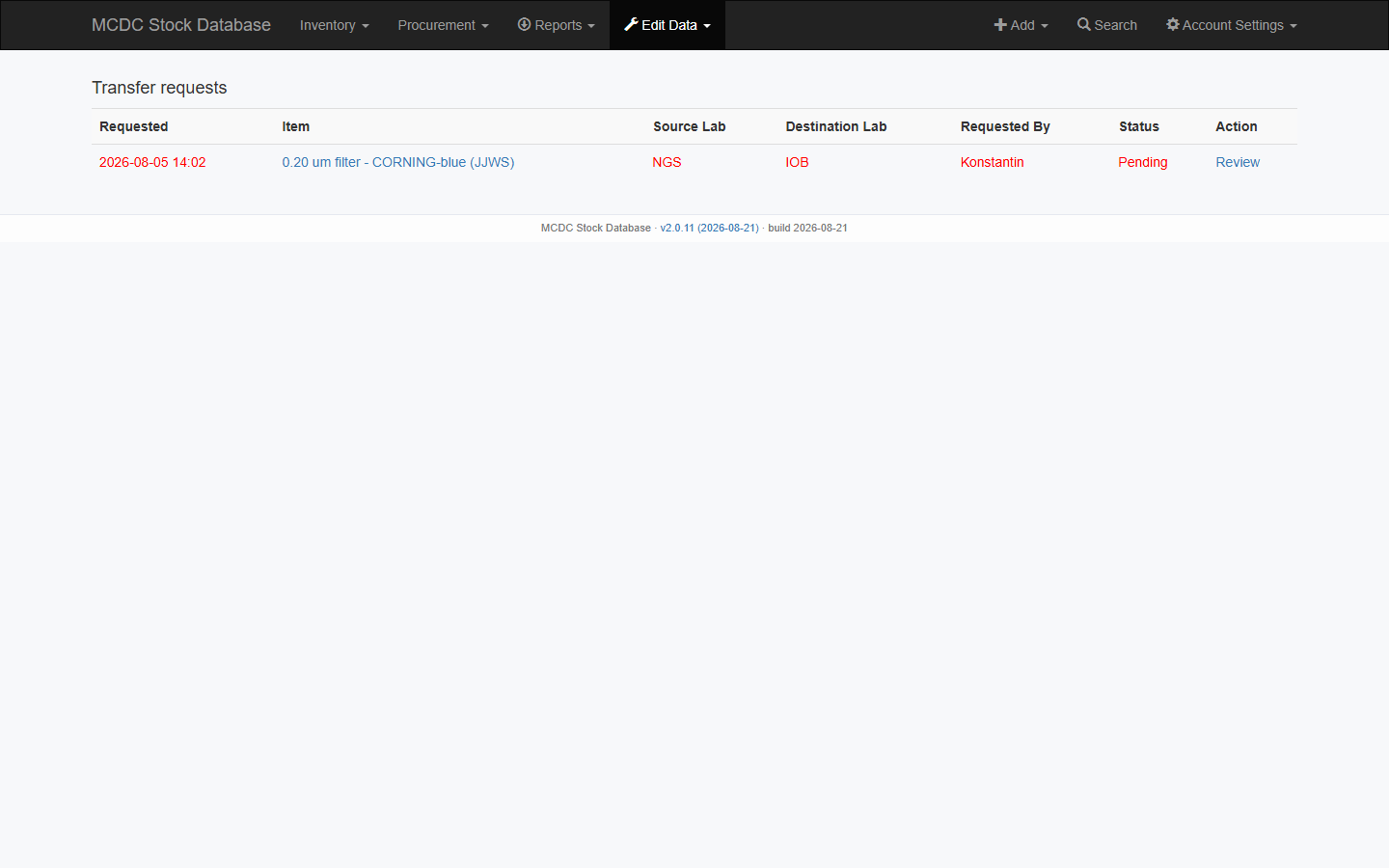
- Inventory → Transfer Requests → Review to approve or reject.
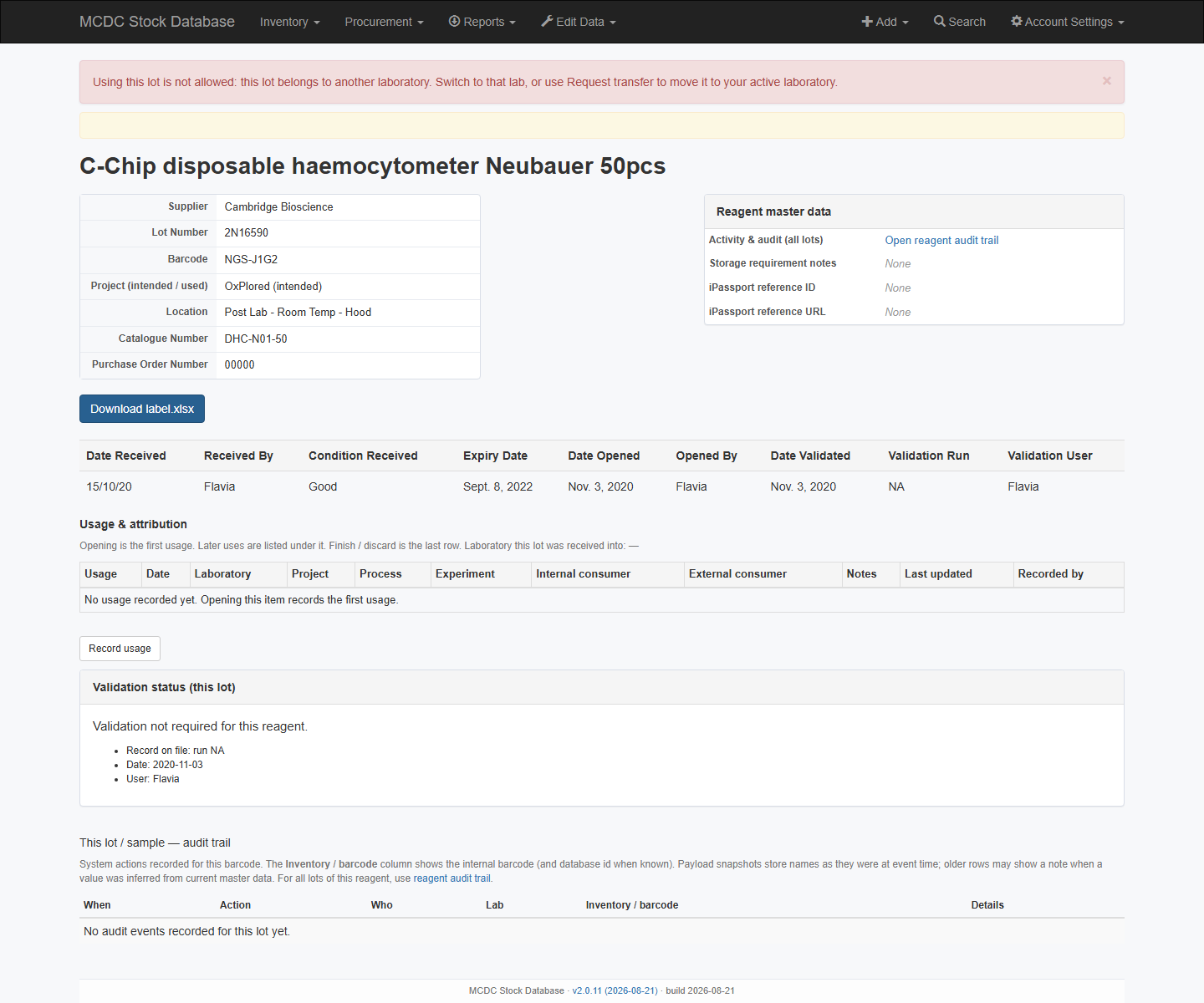
- If you can see a lot but cannot open/use/finish it, you are in the wrong active lab, or the lot needs a transfer.
Admin: revoke sessions
Account Settings → Revoke Sessions after compromise, a role change, or a shared-PC incident. Superusers also manage accounts from Edit Data → Edit users (Django user list: active, staff, groups). See Admin & master data.