Stock lifecycle
Book-in → open → use → finish → adjust → labels → search. Actor is always the logged-in user.
Book in ──► Open ──► Use ──► Finish
   │
   ├── Adjust (volume / expiry / storage)
   └── Label / QR
Lists
The application name opens the dashboard. Inventory → List of Reagents shows unopened and open counts against the minimum. Use the rest of Inventory for lots:
- All — every lot in scope (including finished if the list includes them)
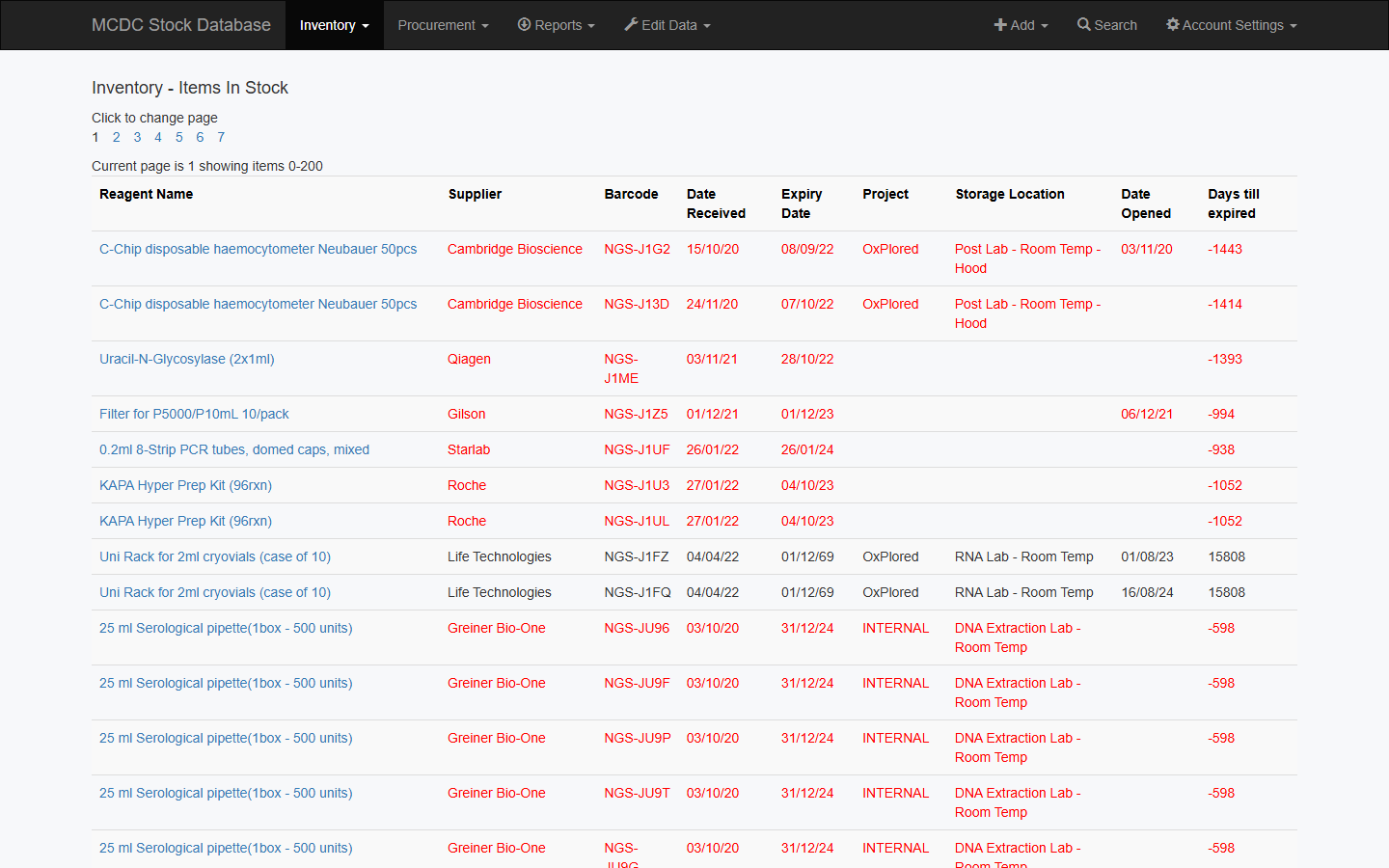
- In Stock — current stock, 200 per page
- Expiring Soon / Solutions / Validated / Not validated
Book in
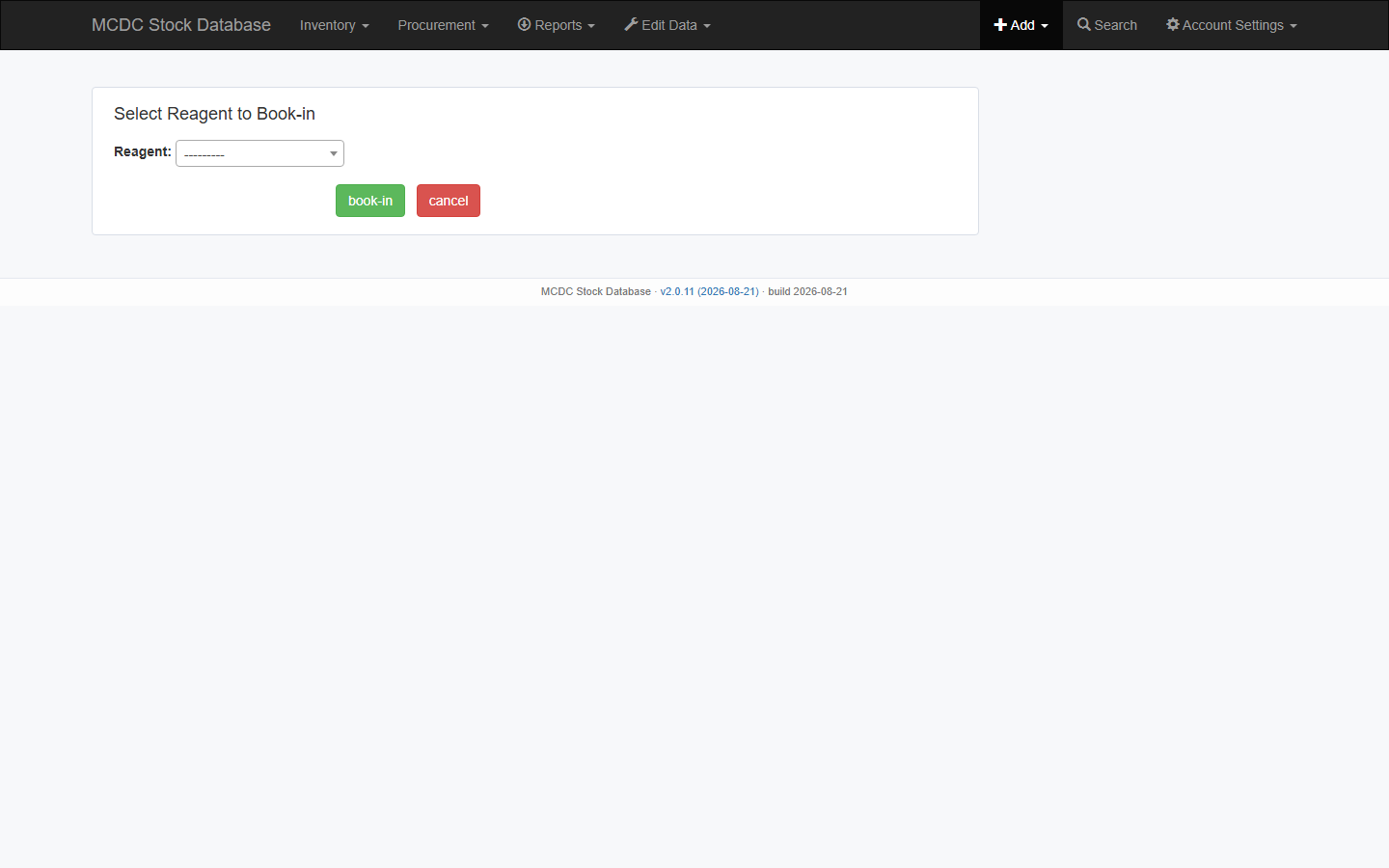
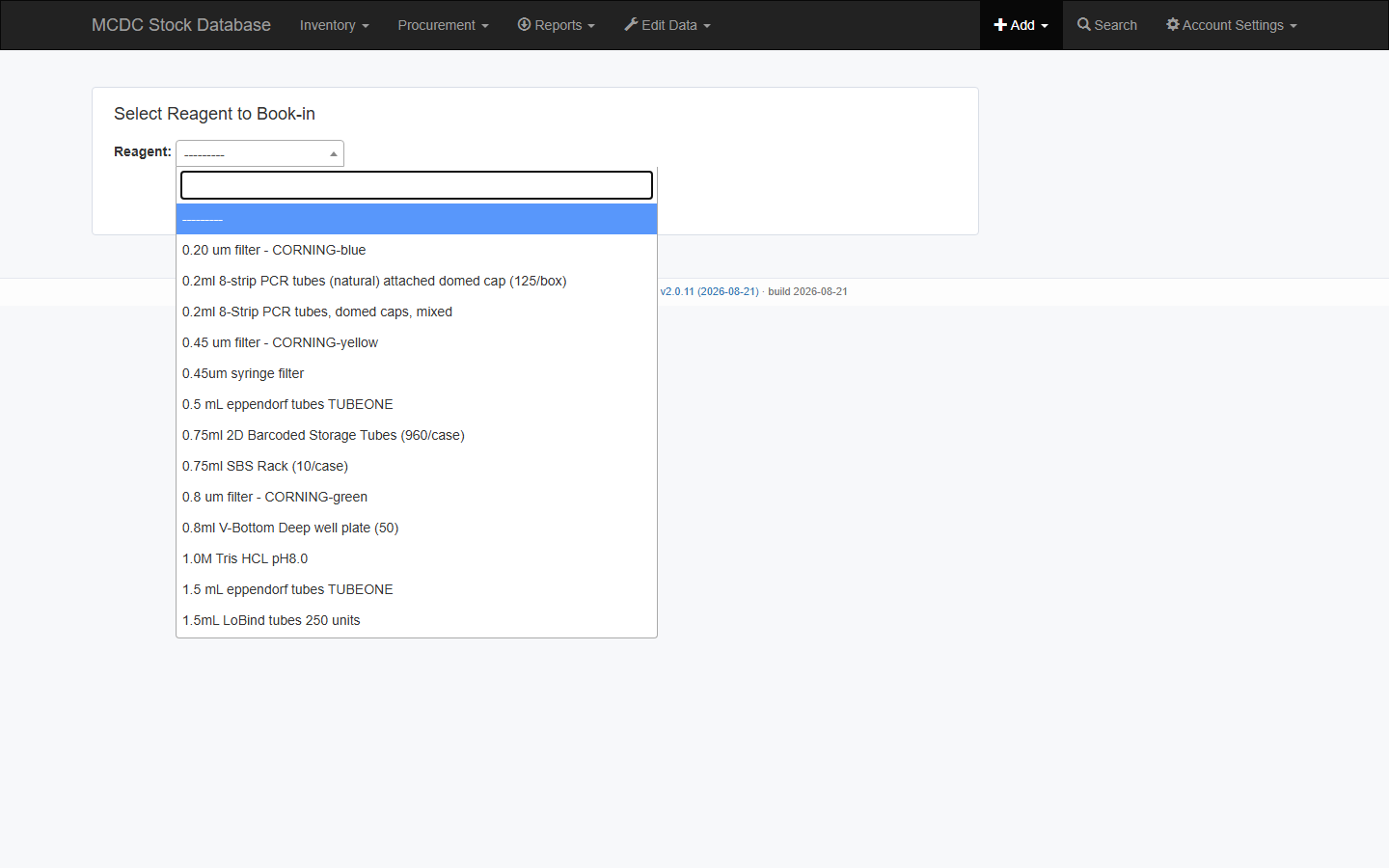
Add → Inventory Item (admins) or New Inventory Item (lab users). First select the reagent, then complete lot, quantity/volume, lab scope, condition, dates, PO, expiry, project, and storage. Note the barcode(s) assigned.
Booking into a different lab than the reagent home lab may widen the reagent to shared across labs (warning shown); lot ownership stays as chosen.
Item page: usage table
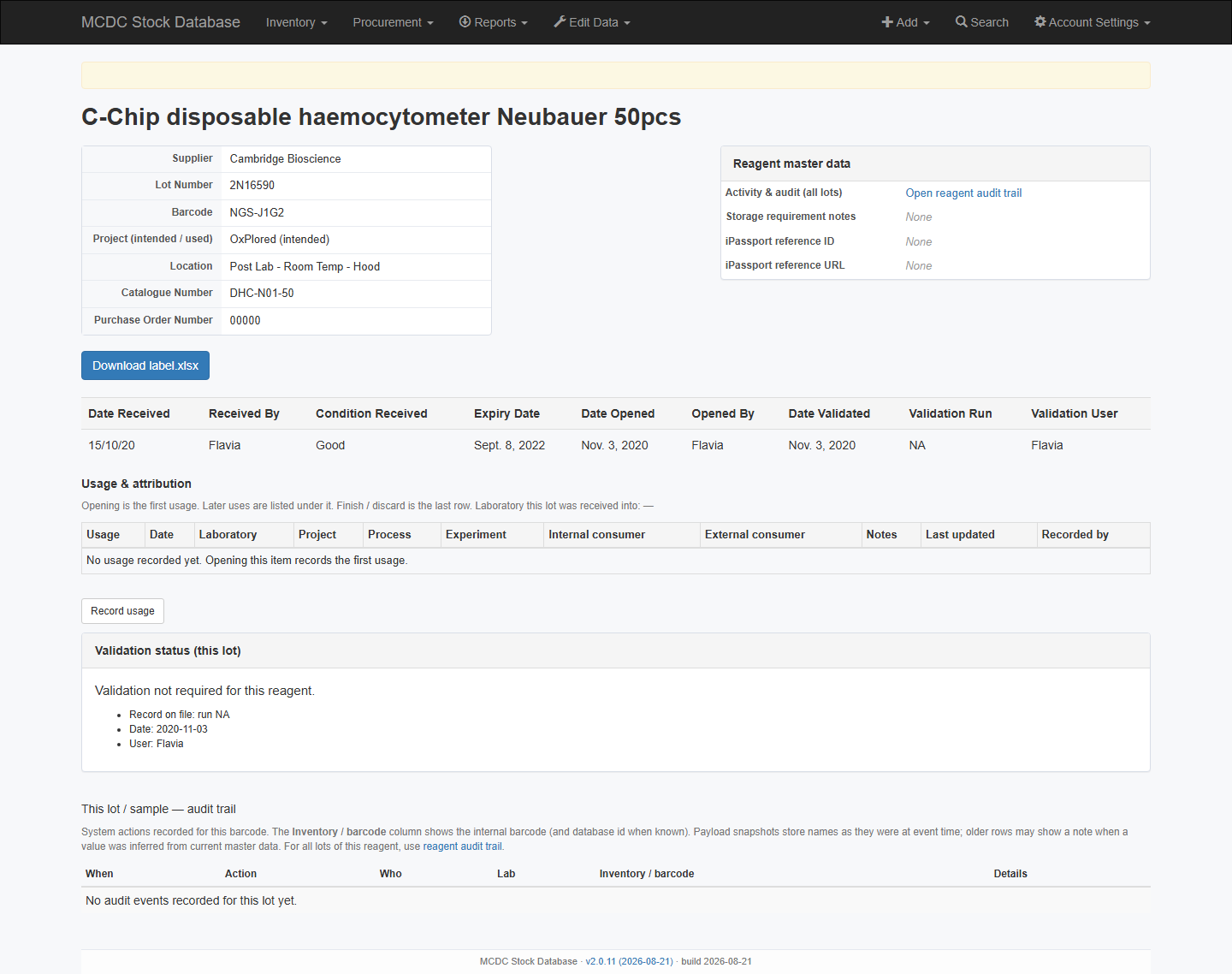
Each lot keeps a Usage & attribution table under Date Received / Received By. Opening is the first row; later Use item rows sit under it; Finish / Discard is last. Every usage is kept (dates plus project, process, experiment, consumers, notes, last updated, recorded by).
- Open Item — date, project/process/experiment/consumers, FEFO justification if prompted. Confirm storage and attribution; they seed the usage trail.
- Use Item — a new usage (volume-tracked: volume, date, notes, return location; otherwise date and attribution). The table is not overwritten.
- Finish / Discard Item — last usage row, same attribution fields, plus reason.
- Record usage under the table is the same form as Use item.
Open, use, finish, validate, adjust, transfer, and label download/reprint from the item page are written to that lot’s audit trail.
Finish / adjust / expiry
- Finish Item — reason + date (consumed, disposed, failed validation, stability…).
- Adjust — volume and/or expiry and/or storage; one change type at a time; reason required.
- Expiry cannot be before the received date.
Labels
- Item page → Download label.xlsx or label preview / reprint (witness if required).
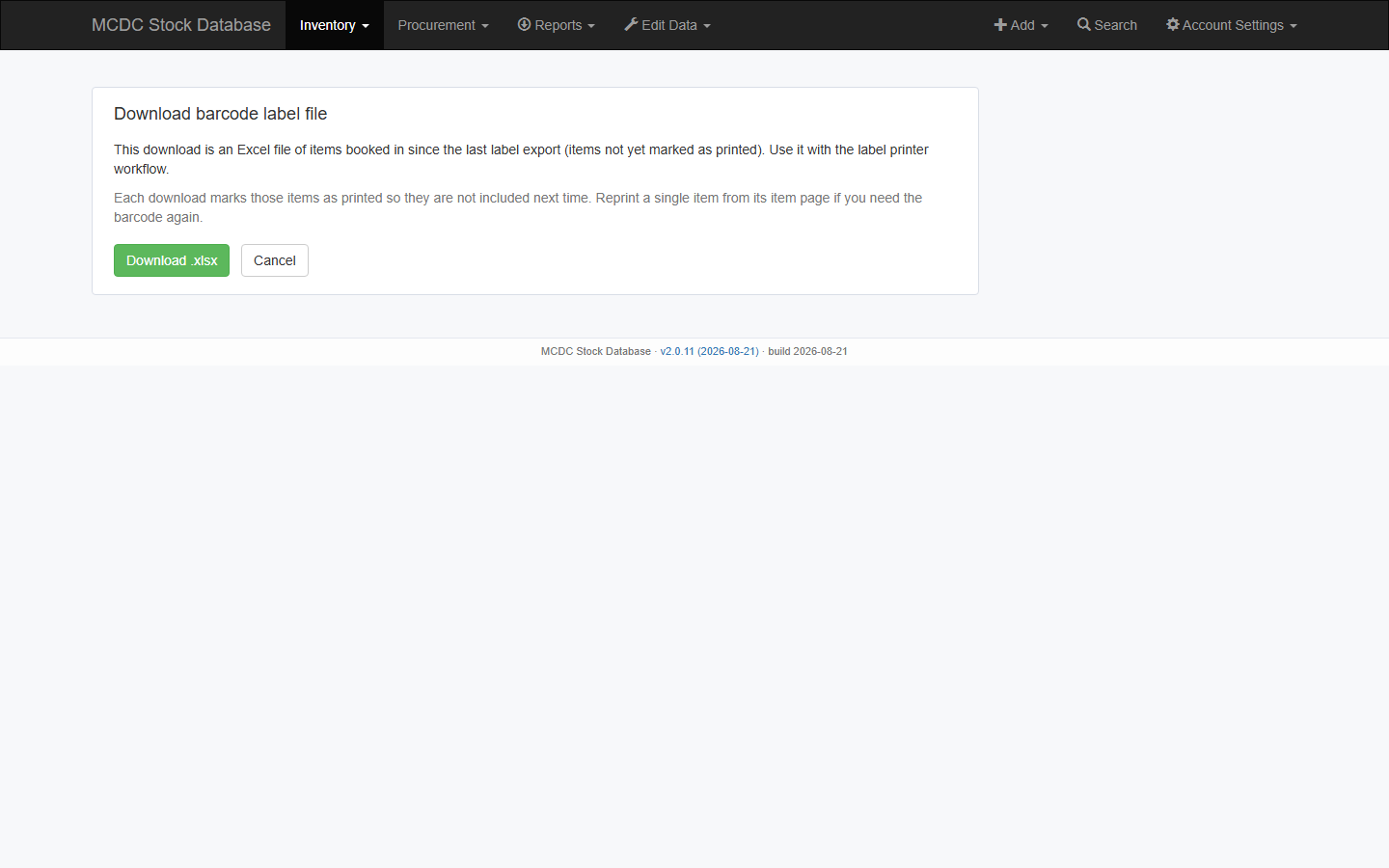
- Inventory → Download label file — Excel of items booked in since the last download (not yet printed). Each download marks those items as printed. Reprint a single item from its page if you need the barcode again.
Search
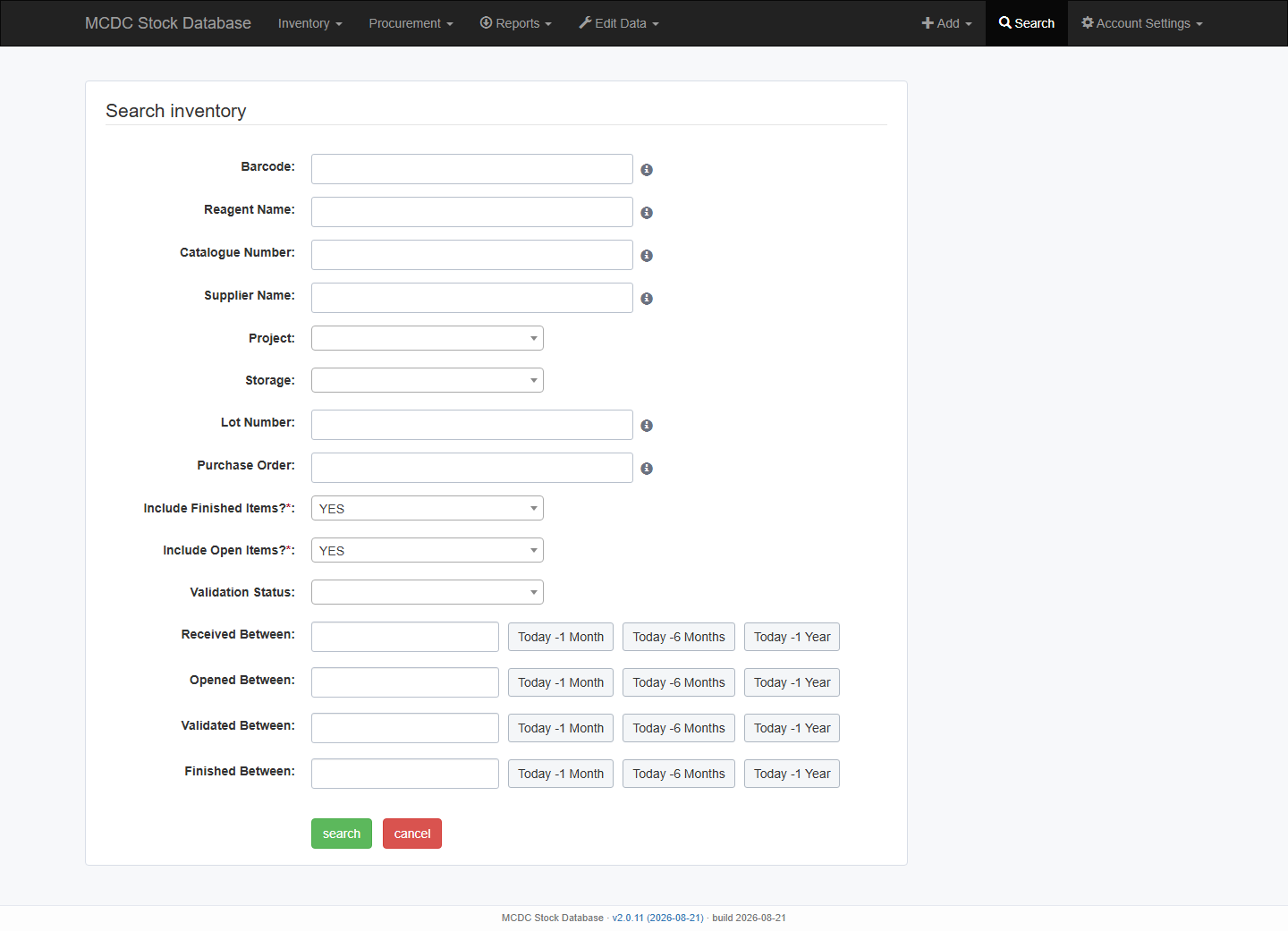
Search (magnifying glass) finds a barcode, reagent name, catalogue number, supplier, lot, or PO. Finished lots are included by default (Include Finished Items? = YES). Open lots stay included unless you turn that off.
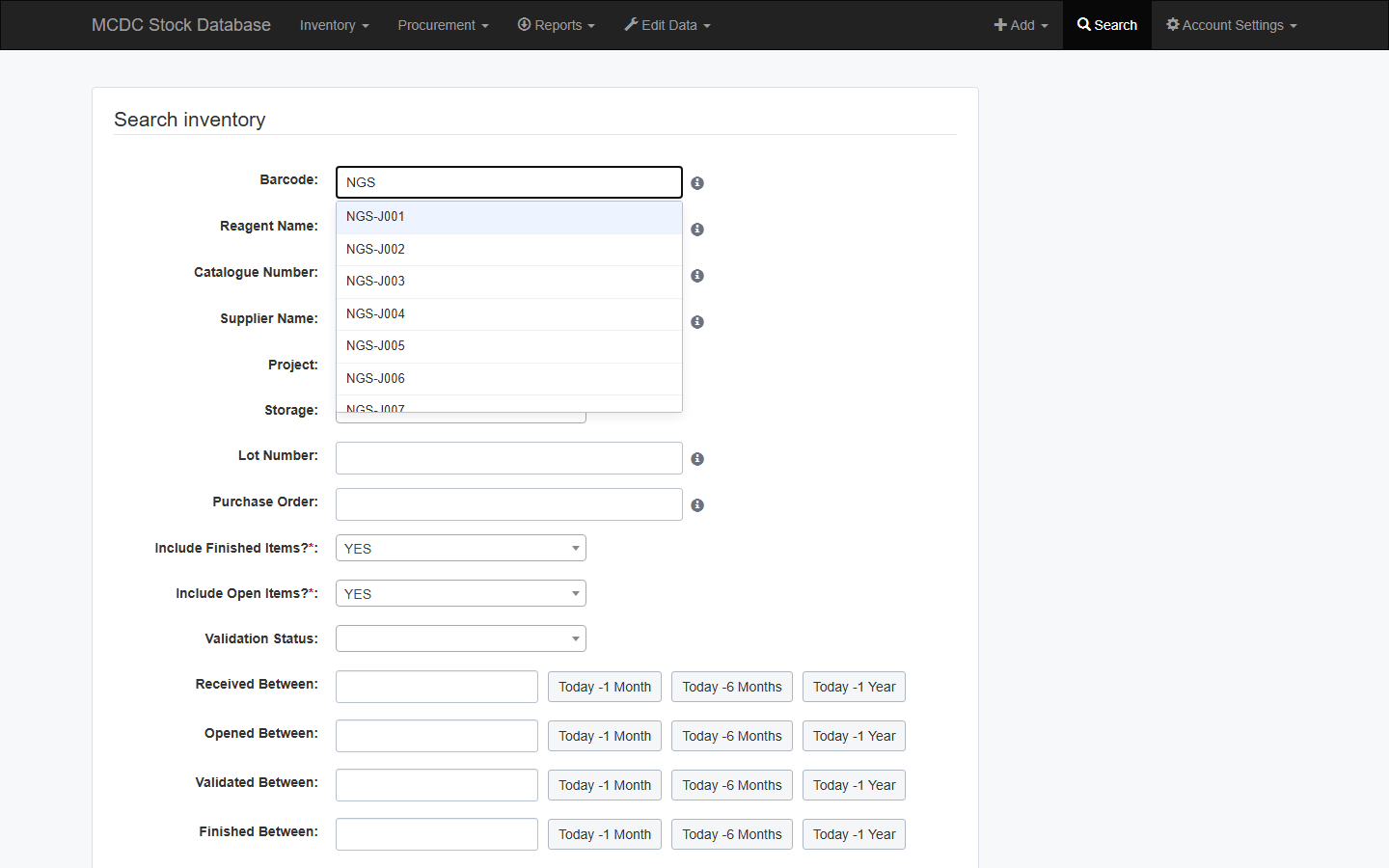
Lots migrated from NGS or IOB keep codes such as NGS-J1G2 and IOB-J1G2. Search matches the full code and the short code (J1G2). New lots are given a random 4-character code that does not start with a required J and does not use 0/O or 1/I/L. Autocomplete can fill a labelled value and still find the lot.
As you type, matching values appear; if there is no exact hit, closest matches are ranked (prefix, contains, fuzzy), limited to your laboratory scope.
For many barcodes at once use Reports → Barcode lookup.
Undo
Admin undo is for genuine data-entry mistakes only. Prefer Adjust so the audit trail stays complete. Stocktake exists at /stock/stocktake/ but is not on the main menu.